
Whilst taking note of the timestamps for our latest YouTube video, I noticed that Windows’s native Notepad, which I use for quickly jotting down information, somehow keeps track of all previous, unsaved data across each new instantiation of the program. What’s even more interesting is that, not only does the data persist across each new Notepad process, but across reboots too, which got me thinking, how does Notepad actually store and keep record of this information? Call me old-fashioned, but I was under the impression that saving a file required, well, actually saving it, so how does Notepad seem to remember as if by magic?
After spending a couple of nights poking around its file structure, and some public research, I found a few studies that had previously covered (opens in a new tab) this topic, along with some techniques on how it can be exploited. However, I believe the matter is significantly more pressing from a data privacy standpoint than is let on, as even I, a humble senior security engineer, had previously copied passwords and other sensitive data into Notepad and closed it without a second thought as to whether that information was persisting.
Through my findings, I was able to identify several ways in which Notepad’s cached data can be abused, including:
- Harvesting of sensitive information
- Defence evasion (yes, anything temporarily cached in Notepad does not get flagged by Defender, as of yet)
- Distribution of malware (opens in a new tab)
In this article, I will discuss its structure and its particular use for harvesting information from unsaved notes for red teaming purposes.
Updates to Notepad
If you have been using Windows for some time, you may remember that older versions of Notepad (think, prior to Windows 11) required that all modified textual buffers (or, simply, notes) were saved to disk before Notepad could be closed. In fact, if a new note was made and the data not saved, Notepad would throw an error stating that you must save or discard the data before it could be closed. If you have forgotten what that looked like, here is an example of the ancient relic below:

The build of Notepad shipped with Windows 11 shifted away from the classic one, introducing support for:
- Markdown
- AI
- Embedded links
- And, most importantly for this article, tabs (opens in a new tab), allowing for multiple files to be managed within a single instance of Notepad
Interestingly, as tabs are opened and content is written to them, this modern build of Notepad no longer requires that the contents are saved before closing by default, nor does it complain when closed with one or more unsaved tabs left open. For example:

Upon reopening Notepad, the same unsaved tab reappears, complete with its tab name and all unsaved contents, and further changes can be made as necessary, saving only when required.
So, what gives?
Tabstate files
To understand how Notepad caches unsaved buffer contents, we first need to understand how its contents, whether saved or unsaved, are persisted to the system. One simple way to observe this behaviour is to use Sysinternals (opens in a new tab) Process Monitor (opens in a new tab) (which allows us to monitor system events and file operations in real time), filtering for:
- Processes with the name of
Notepad.exe - Operations of type
WriteFile(i.e. file write operations)
Once the filters are set and Process Monitor is listening, writing some content in Notepad reveals interesting file write activity taking place in the user’s %LOCALAPPDATA%\Packages folder:
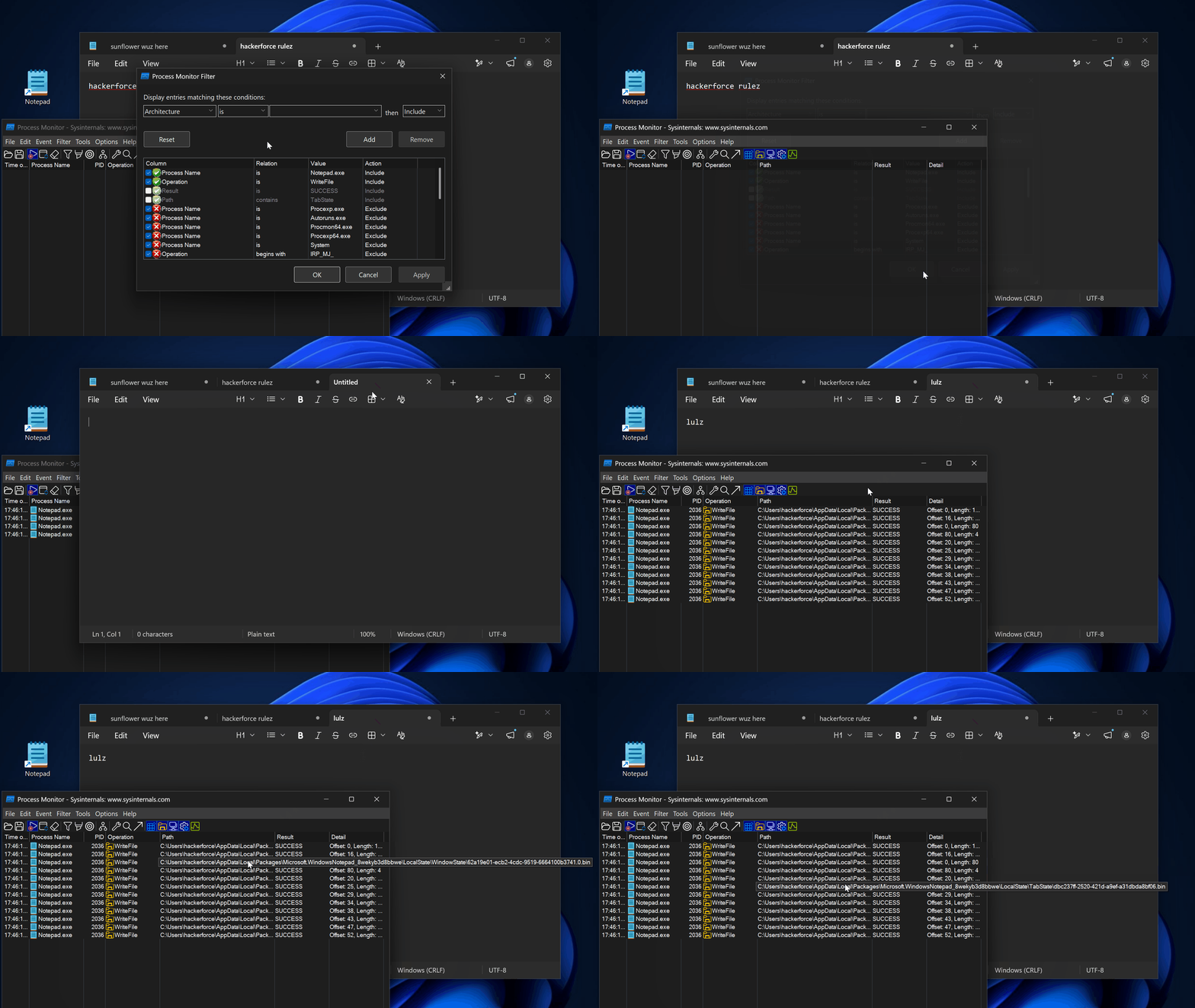
More specifically, as content is written, Notepad appears to be preserving its buffers by caching them as .bin files under the program’s default \Microsoft.WindowsNotepad_8wekyb3d8bbwe\LocalState\TabState\ directory:
PS > Get-ChildItem $env:LOCALAPPDATA\Packages\Microsoft.WindowsNotepad_8wekyb3d8bbwe\LocalState\TabState


    Directory: C:\Users\hackerforce\AppData\Local\Packages\Microsoft.WindowsNotepad_8wekyb3d8bbwe\LocalState\TabState


Mode                 LastWriteTime         Length Name
----                 -------------         ------ ----
-a----        16/10/2026     17:17             28 0d2b6bc5-beac-4592-b617-c1177e80639c.bin
-a----        16/10/2026     17:07             54 2f3e86a0-d663-4bdd-af01-04547b7c08da.bin
-a----        16/10/2026     17:07             56 59906e5d-e53b-40b6-b3d0-b954a27e226f.bin
...
Here, each .bin file, also known as a tabstate file, stores information about its respective tab and its contents, and has its own GUID. Whenever a new note is created and written to, Notepad creates an empty tab with its associated .bin file and, as content is written, progressively flushes it to the corresponding tabstate file. When closed, each note is fully flushed and cached locally to disk at this location.
In addition to these .bin files, you may also notice several files in the format of .0.bin and .1.bin:
PS > Get-ChildItem $env:LOCALAPPDATA\Packages\Microsoft.WindowsNotepad_8wekyb3d8bbwe\LocalState\TabState


    Directory: C:\Users\hackerforce\AppData\Local\Packages\Microsoft.WindowsNotepad_8wekyb3d8bbwe\LocalState\TabState


Mode                 LastWriteTime         Length Name
----                 -------------         ------ ----
-a----        16/10/2026     17:18             19 0d2b6bc5-beac-4592-b617-c1177e80639c.0.bin
-a----        16/10/2026     17:18              0 0d2b6bc5-beac-4592-b617-c1177e80639c.1.bin
-a----        16/10/2026     17:17             19 2f3e86a0-d663-4bdd-af01-04547b7c08da.0.bin
-a----        16/10/2026     17:17              0 2f3e86a0-d663-4bdd-af01-04547b7c08da.1.bin
-a----        16/10/2026     17:17             19 59906e5d-e53b-40b6-b3d0-b954a27e226f.0.bin
-a----        16/10/2026     17:17              0 59906e5d-e53b-40b6-b3d0-b954a27e226f.1.bin
...
These are temporary state files created when Notepad is closed, each storing additional metadata about its corresponding .bin file, though they contain nothing particularly useful beyond that.
Alongside the TabState folder sits WindowState:
PS > Get-ChildItem C:\Users\hackerforce\AppData\Local\Packages\Microsoft.WindowsNotepad_8wekyb3d8bbwe\LocalState\WindowState\


    Directory: C:\Users\hackerforce\AppData\Local\Packages\Microsoft.WindowsNotepad_8wekyb3d8bbwe\LocalState\WindowState


Mode                 LastWriteTime         Length Name
----                 -------------         ------ ----
-a----        16/10/2026     17:15             84 62a19e01-ecb2-4cdc-9519-6664100b3741.0.bin
-a----        16/10/2026     17:15             68 62a19e01-ecb2-4cdc-9519-6664100b3741.1.bin
...
These files are cached in a similar manner, but rather than storing information about the note, they store information about Notepad’s open windows. A separate file is created for each open window, storing the following:
- Order of tabs
- Active tab
- Window size, and much more
From a red team perspective, there is little of value here, though the data may be of interest to those working in DFIR.
Tabstate file structure
At this stage, we know that Notepad caches its contents locally as .bin files whenever data is written to it. Opening Process Monitor again, this time filtering explicitly for CreateFile operations (i.e. operations involving the creation and opening of files), we can see that Notepad reads back those previously written cache files, thereby restoring the original session:
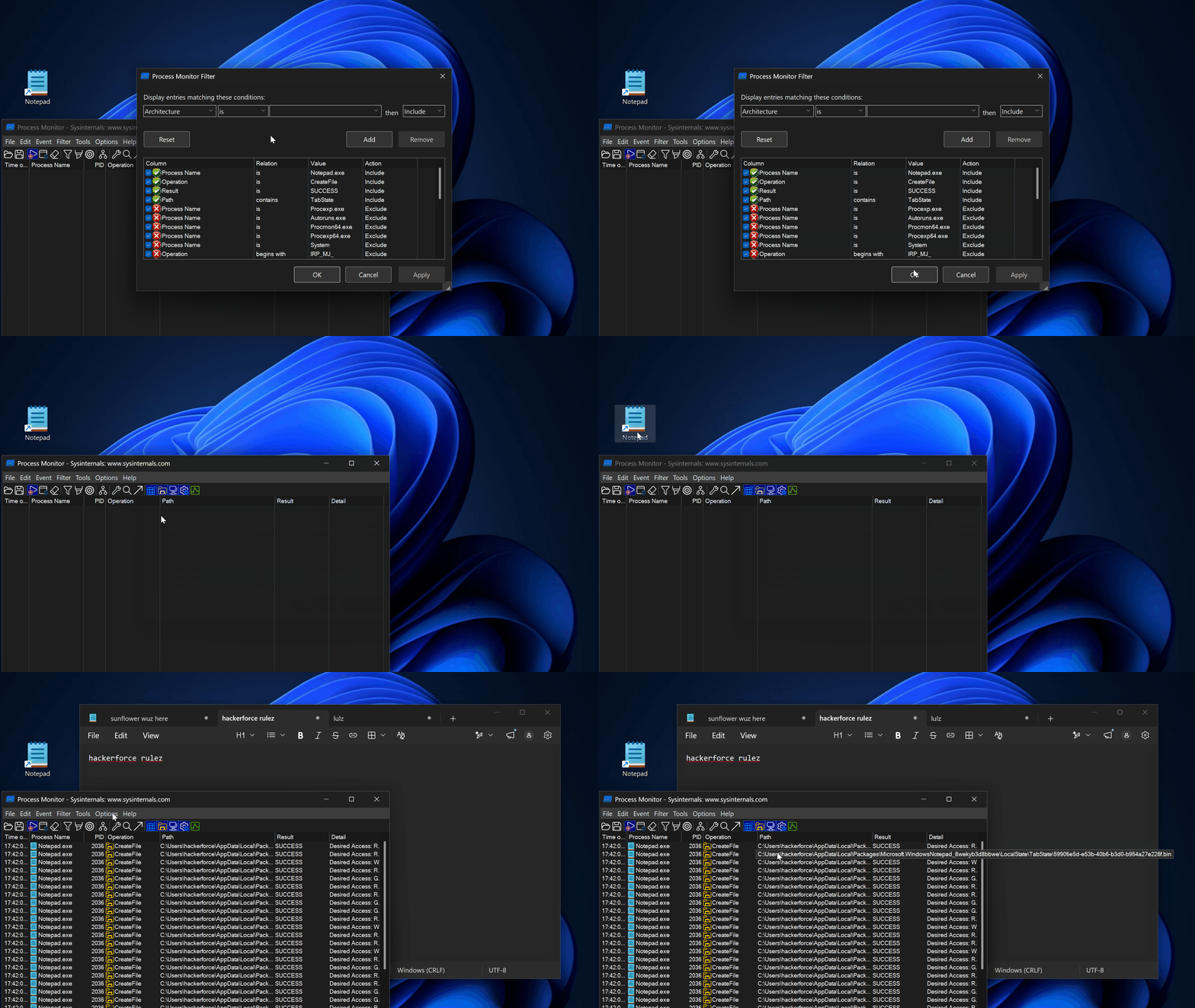
This confirms that the tabstate files store the written content that is then read back into Notepad on launch.
By obtaining a copy of one of those tabstate files and passing it to a hex editor such as hexdump (or alternatively ImHex (opens in a new tab), which has a pattern file (opens in a new tab) that supports Notepad’s file structure and aids in discerning its contents), we can inspect it directly:
$ hexdump -C 2f3e86a0-d663-4bdd-af01-04547b7c08da.bin
00000000  4e 50 00 00 01 11 11 01  00 00 03 01 01 01 11 68  |NP.............h|
00000010  00 61 00 63 00 6b 00 65  00 72 00 66 00 6f 00 72  |.a.c.k.e.r.f.o.r|
00000020  00 63 00 65 00 20 00 72  00 75 00 6c 00 65 00 7a  |.c.e. .r.u.l.e.z|
00000030  00 01 e7 e7 8e d7                                 |......|
00000036
If you are observant, you will notice that somewhere in between the data, the actual plaintext contents of what was written to Notepad can be seen, but before we extract and parse this data, let us take a look at some, though not all, of the most important elements of its file structure.
The Header
Starting with the first two bytes, we have values 0x4e and 0x50:
00000000  4e 50 .. .. .. .. .. ..  .. .. .. .. .. .. .. ..  |NP.............h|
00000010  .. .. .. .. .. .. .. ..  .. .. .. .. .. .. .. ..  |.a.c.k.e.r.f.o.r|
00000020  .. .. .. .. .. .. .. ..  .. .. .. .. .. .. .. ..  |.c.e. .r.u.l.e.z|
00000030  .. .. .. .. .. ..                                 |......|
00000036
These two bytes are what is known as magic bytes (opens in a new tab), and depending on their values, are used by operating systems and applications to identify the file format and how to parse its data correctly.
In this instance, 0x4e and 0x50 are hexadecimal representations of NP which, presumably, stand for ‘Notepad’.
TypeFlag
Moving on, the fourth byte specifies the file’s type, also known as TypeFlag:
00000000  .. .. .. 00 .. .. .. ..  .. .. .. .. .. .. .. ..  |NP.............h|
00000010  .. .. .. .. .. .. .. ..  .. .. .. .. .. .. .. ..  |.a.c.k.e.r.f.o.r|
00000020  .. .. .. .. .. .. .. ..  .. .. .. .. .. .. .. ..  |.c.e. .r.u.l.e.z|
00000030  .. .. .. .. .. ..                                 |......|
00000036
This byte holds one of two possible values:
0x00when the file is unsaved0x01when it is saved
Naturally, since this is a tabstate file that has been temporarily cached rather than saved, you can expect this to always hold a value of 0x00.
Length of data
Following some more configuration and parsing bytes comes the set of bytes that contain the total length of the data:
00000000  .. .. .. .. .. .. .. ..  .. .. .. .. .. .. 11 ..  |NP.............h|
00000010  .. .. .. .. .. .. .. ..  .. .. .. .. .. .. .. ..  |.a.c.k.e.r.f.o.r|
00000020  .. .. .. .. .. .. .. ..  .. .. .. .. .. .. .. ..  |.c.e. .r.u.l.e.z|
00000030  .. .. .. .. .. ..                                 |......|
00000036
In this instance, 0x11 is 17 in decimal, which is indeed the total length of the given string.
That said, for any contents less than 255 characters (0xff in hex), the bytes containing the length of the data are naturally limited to a single byte. For anything over, this may extend to two or more bytes, depending on the length of the data. This is worth keeping in mind if you attempt to automate the process of decoding Notepad data.
Contents
Following some more configuration and parsing bytes, comes the actual bytes that contain the data:
00000000  .. .. .. .. .. .. .. ..  .. .. .. .. .. .. .. 68  |NP.............h|
00000010  00 61 00 63 00 6b 00 65  00 72 00 66 00 6f 00 72  |.a.c.k.e.r.f.o.r|
00000020  00 63 00 65 00 20 00 72  00 75 00 6c 00 65 00 7a  |.c.e. .r.u.l.e.z|
00000030  00 .. .. .. .. ..                                 |......|
00000036
Looking more closely, each character is separated into two bytes. This makes sense, given that Windows uses UTF-16 encoding (opens in a new tab), which is why each standard character takes up a minimum of two bytes.
From a red team perspective, this is the part we are most interested in, as it is the cached content that Notepad saves when written to. We will take a look shortly at how this data can be extracted.
CRC checksum
The last four bytes are simply a cyclic redundancy check (opens in a new tab) (CRC) checksum of the contents:
00000000  .. .. .. .. .. .. .. ..  .. .. .. .. .. .. .. ..  |NP.............h|
00000010  .. .. .. .. .. .. .. ..  .. .. .. .. .. .. .. ..  |.a.c.k.e.r.f.o.r|
00000020  .. .. .. .. .. .. .. ..  .. .. .. .. .. .. .. ..  |.c.e. .r.u.l.e.z|
00000030  .. .. e7 e7 8e d7                                 |......|
00000036
This can easily be confirmed with some Python code, by reading the tabstate file in binary, from the fourth byte to the last, excluding the final four bytes:
$ python3
>>> import binascii
>>>
>>> file = "2f3e86a0-d663-4bdd-af01-04547b7c08da.bin"
>>>
>>> with open(file, 'rb') as filep:
...     contents = filep.read()
...     checksum = binascii.crc32(contents[3:-4])
...     print(hex(checksum))
...
0xe7e78ed7
As expected, when executed, the result is 0xe7e78ed7.
Reading tabstate file contents
At this stage, we know the contents and the encoding mechanism that is used to encode the data as part of the Notepad file. Although the data is visible through hexdump, it is not always immediately clear what that data represents, especially if it is long or contains a list of numbers.
One of the issues with conventional commands, such as Linux’s cat, is that it does not support Notepad’s file structure, so whenever it attempts to read its contents, the output may appear broken or garbled, which can cause confusion, particularly when the content in question is a password or something similar:
$ cat 2f3e86a0-d663-4bdd-af01-04547b7c08da.bin
NPhackerforce rulez<?>?
Fortunately, there are tools that already support such decoding, including:
- Linux’s
stringscommand - Sysinternals version of strings (opens in a new tab)
For example, using Linux’s strings command with the -e switch to specify encoding and l as its value to specify 16-bit little endian returns the complete note in plain text:
$ strings -el 2f3e86a0-d663-4bdd-af01-04547b7c08da.bin
hackerforce rulez
Similarly, on Windows, the same can be achieved using the Sysinternals version:
PS > strings64.exe 2f3e86a0-d663-4bdd-af01-04547b7c08da.bin

Strings v2.54 - Search for ANSI and Unicode strings in binary images.
Copyright (C) 1999-2021 Mark Russinovich
Sysinternals - www.sysinternals.com

hackerforce rulez
Whilst not a password, you get the idea.
Summary
As of writing, Notepad’s autosave feature, which caches notes locally without any warning, remains enabled by default. This means that any sensitive content left over unintentionally can be extracted with relative ease, including but not limited to:
- Passwords
- Credit card information
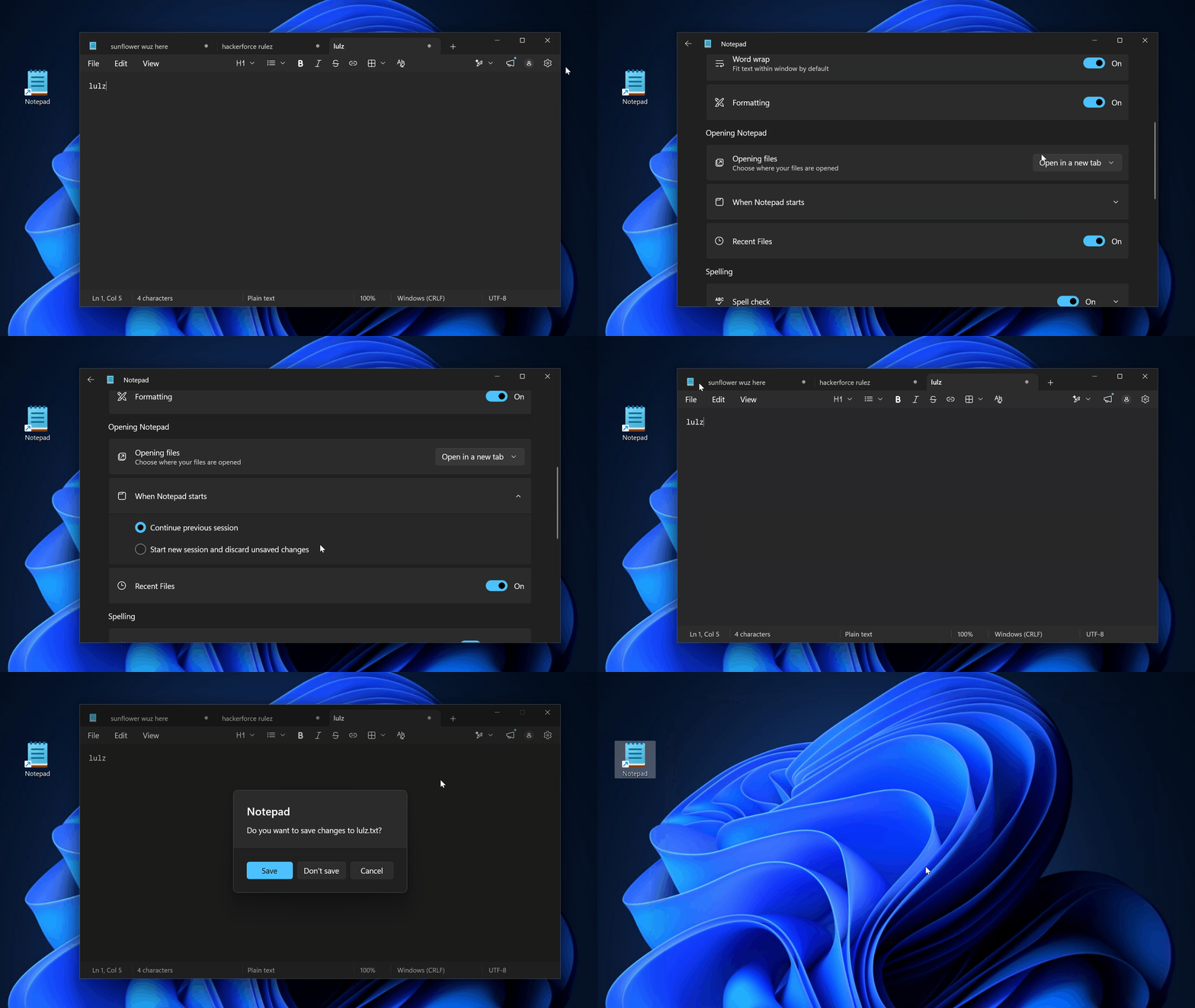
To restore the default behaviour, where Notepad prompts you to save before closing, navigate to its settings and, under the When Notepad starts section, set Start new session and discard unsaved changes to on. This will prompt you to save each tab’s contents before Notepad exits:
If you’re looking to configure this in AD DS via group policy, I couldn’t find any stable setting for it as of yet, with no documentation available either. A workaround may exist, and if one surfaces, this article will be updated accordingly.